
The Elonga app allows automatic synchronization of activity data from Google Fit.
If the data is not being transferred or the connection is not working properly, the cause is usually related to phone restrictions, missing permissions, an outdated authorization token, or a problem with the app cache.
1. Most common causes of non-functioning Google Fit synchronization
Sync may fail mainly due to:
the connection between Google Fit and Elonga being broken or incomplete,
missing permissions for Elonga or Google Fit,
an old/invalid authorization stored in Elonga that needs to be refreshed,
corrupted cache or invalid stored data,
Google Fit needing more time for the initial sync after authorization.
2. How the sync issue may appear
You may notice:
missing activities in the Plan section,
outdated step counts,
missing medium or high intensity entries,
error messages when trying to connect Google Fit,
an inactive connection status in Elonga settings.
Important:
Activity synchronization does not affect HRV measurement results, it only fills movement activities into the Plan section.
3. Recommended step-by-step procedure
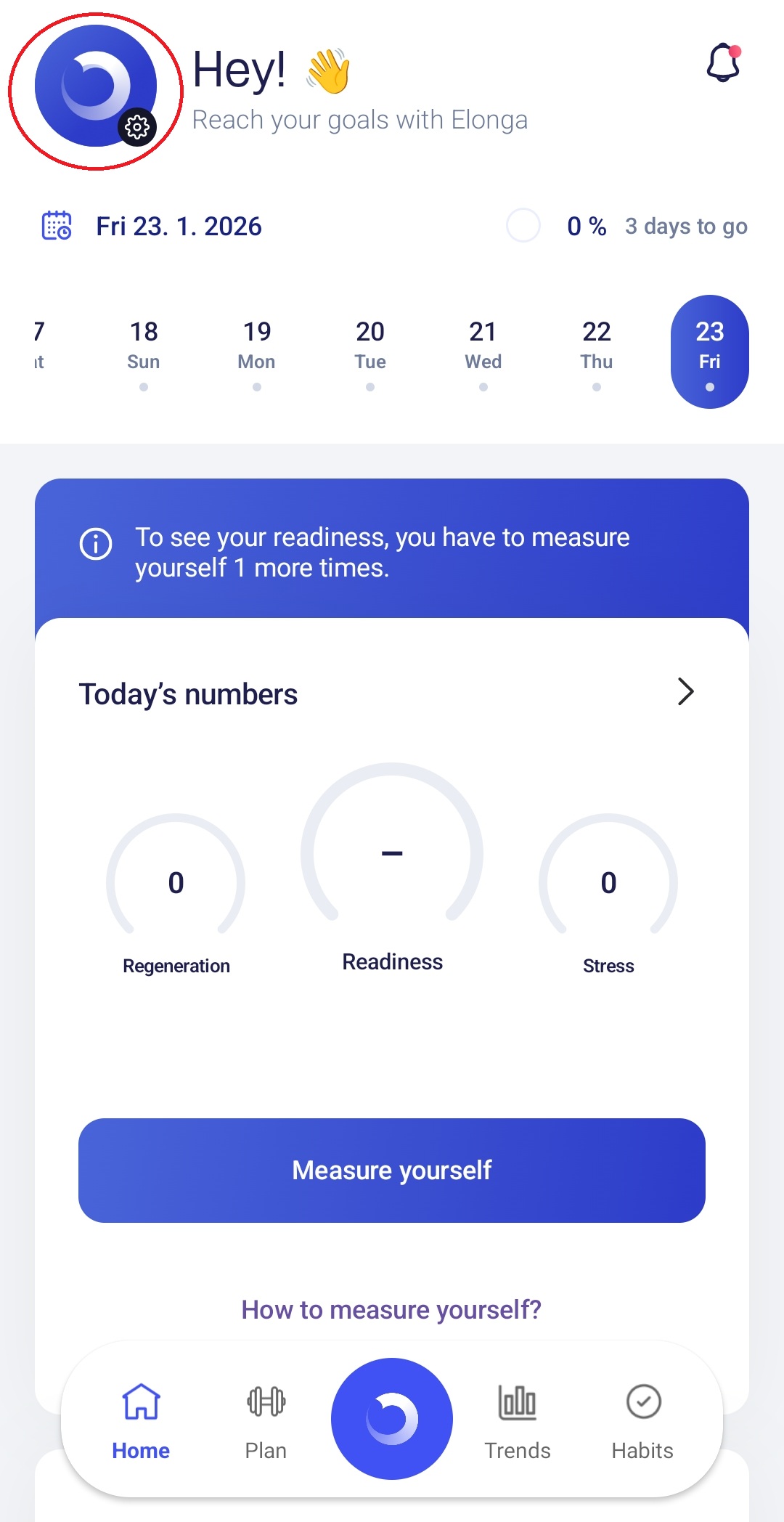
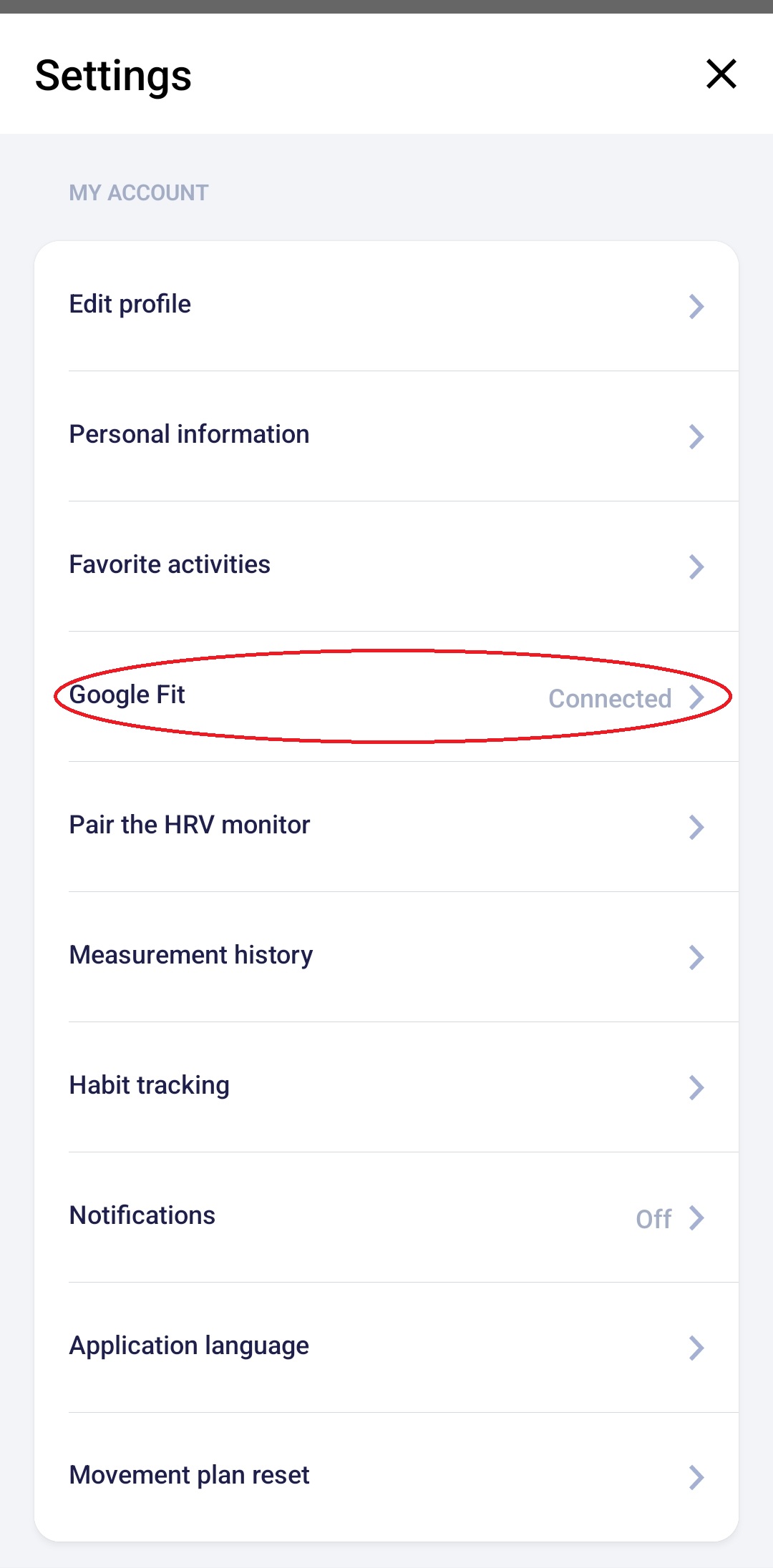
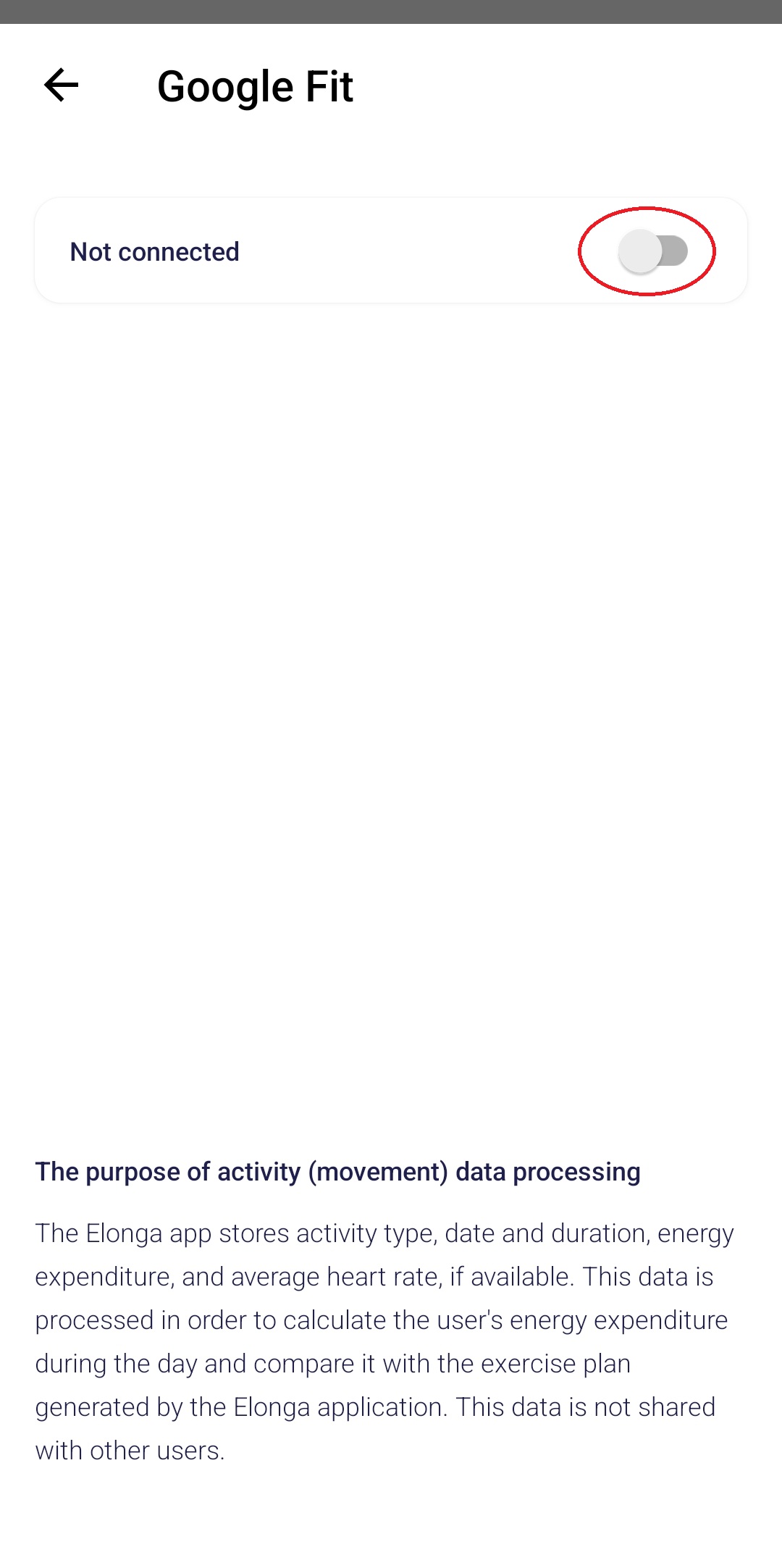
Step 1: Disconnect Google Fit and Elonga
Do this on both sides:
in the Google Fit app → disconnect Elonga,
in the Elonga app → disconnect Google Fit.
This removes old or invalid authorization tokens.
Step 2: Clear data and cache of the Elonga app
On your phone, go to:
Settings → Apps → Elonga
Tap:
Clear data
Clear cache
You will not lose any data stored in your Elonga account.
Step 3: Reinstall the Elonga app
Reset the app – Quick Guide
Uninstall the app
Restart your phone
Install Elonga again
Log in
Re-enable Google Fit connection with all requested permissions
Step 4: Wait for the initial synchronization
After reconnecting, sync may take a few minutes.
We recommend leaving the app open during this time.
4. Additional recommendations
Ensure Google Fit has access to activity and sensor data.
Check that there are no power-saving modes or background restrictions enabled.
If sync doesn’t work on one phone, try linking on another device (if available).
Some Google Fit activities (especially those including intensity levels) may sync as calories burned instead of steps — this is expected system behavior.
5. When should you contact us?
Please reach out to our support team if:
synchronization doesn’t work even after completing all steps,
Google Fit shows an authorization error,
data syncs only partially or incorrectly,
the connection cannot be established at all.
We’ll be happy to assist you.
Was this article helpful?
That’s Great!
Thank you for your feedback
Sorry! We couldn't be helpful
Thank you for your feedback
Feedback sent
We appreciate your effort and will try to fix the article