
Stable internet connectivity and Bluetooth communication are essential for the proper functioning of the Elonga app and for processing your measurement data.
If the internet connection drops or the sensor disconnects during a measurement, the results may not be saved, or the measurement may be interrupted.
1. What issues can occur?
Internet connection problems
Issues may arise when:
the phone loses signal or switches between Wi-Fi and mobile data,
the connection is very weak,
the phone restricts background activity (e.g., power-saving mode),
data processing takes too long due to insufficient connectivity.
This may result in:
measurements not being saved,
an error when sending results,
inability to sync data.
Sensor issues during measurement (disconnections)
Some causes overlap with standard Bluetooth disconnection problems:
interference from other Bluetooth devices,
poor signal quality or incorrect sensor placement,
low battery on the sensor,
Bluetooth limitations caused by the phone.
A detailed troubleshooting guide is available in a separate article, here are the key points.
2. How can I recognize the issue?
You may notice:
an error message when sending data,
a completed measurement that does not save,
a measurement that stops and ends without results,
a signal graph that freezes or does not flow smoothly,
the system refusing to process the measurement due to incomplete data.
3. Recommended steps to resolve the issue
1) Check your internet connection
Try:
switching between Wi-Fi and mobile data,
turning Wi-Fi off and on again,
checking if the router or mobile network reports an outage,
avoiding locations with weak signal.
If the issue occurs only on Wi-Fi, try mobile data (and vice versa).
2) Check your phone and the app
restart your phone,
ensure the Elonga app has all permissions (Bluetooth, background data, active internet),
turn off battery-saving modes or “app optimization”,
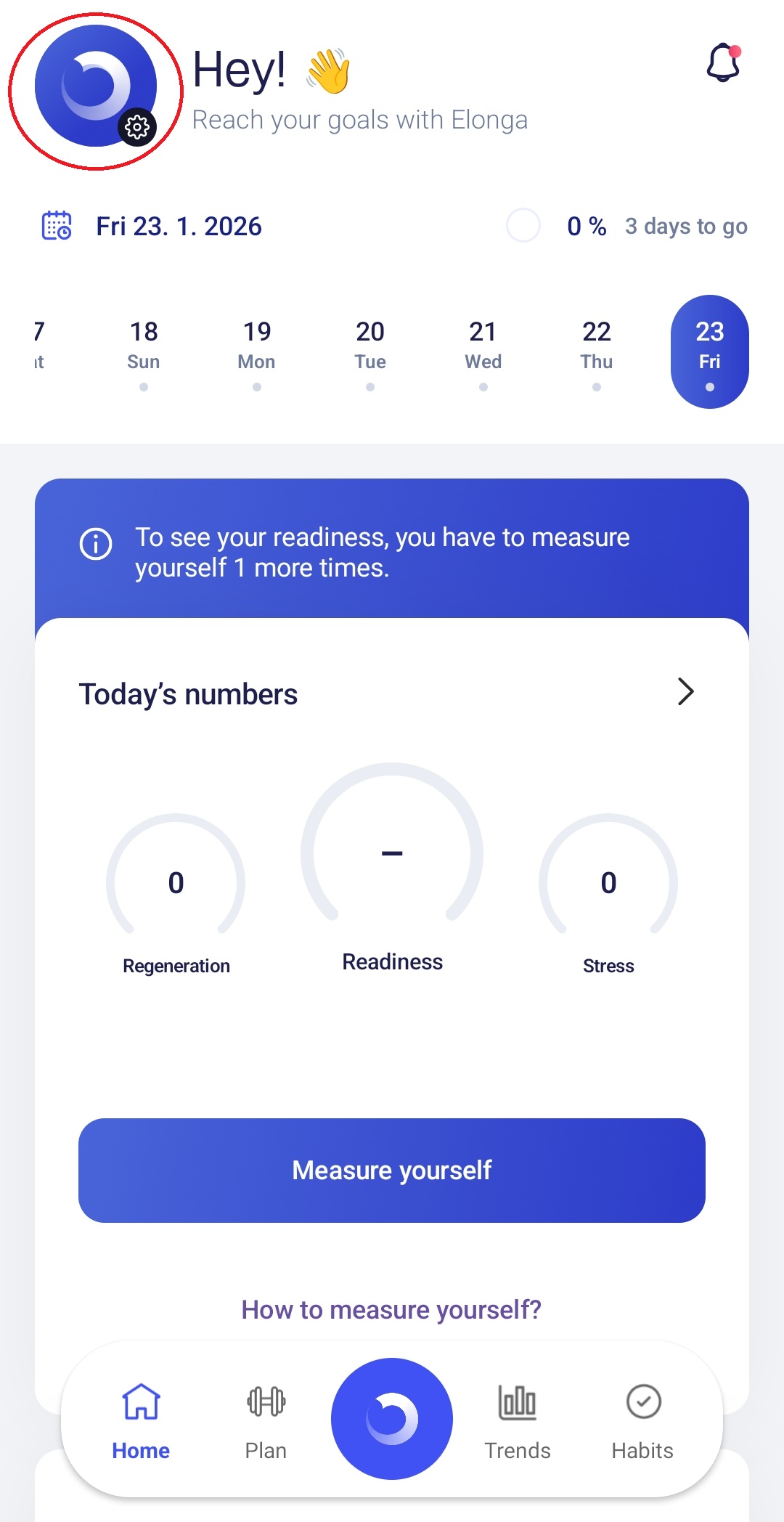
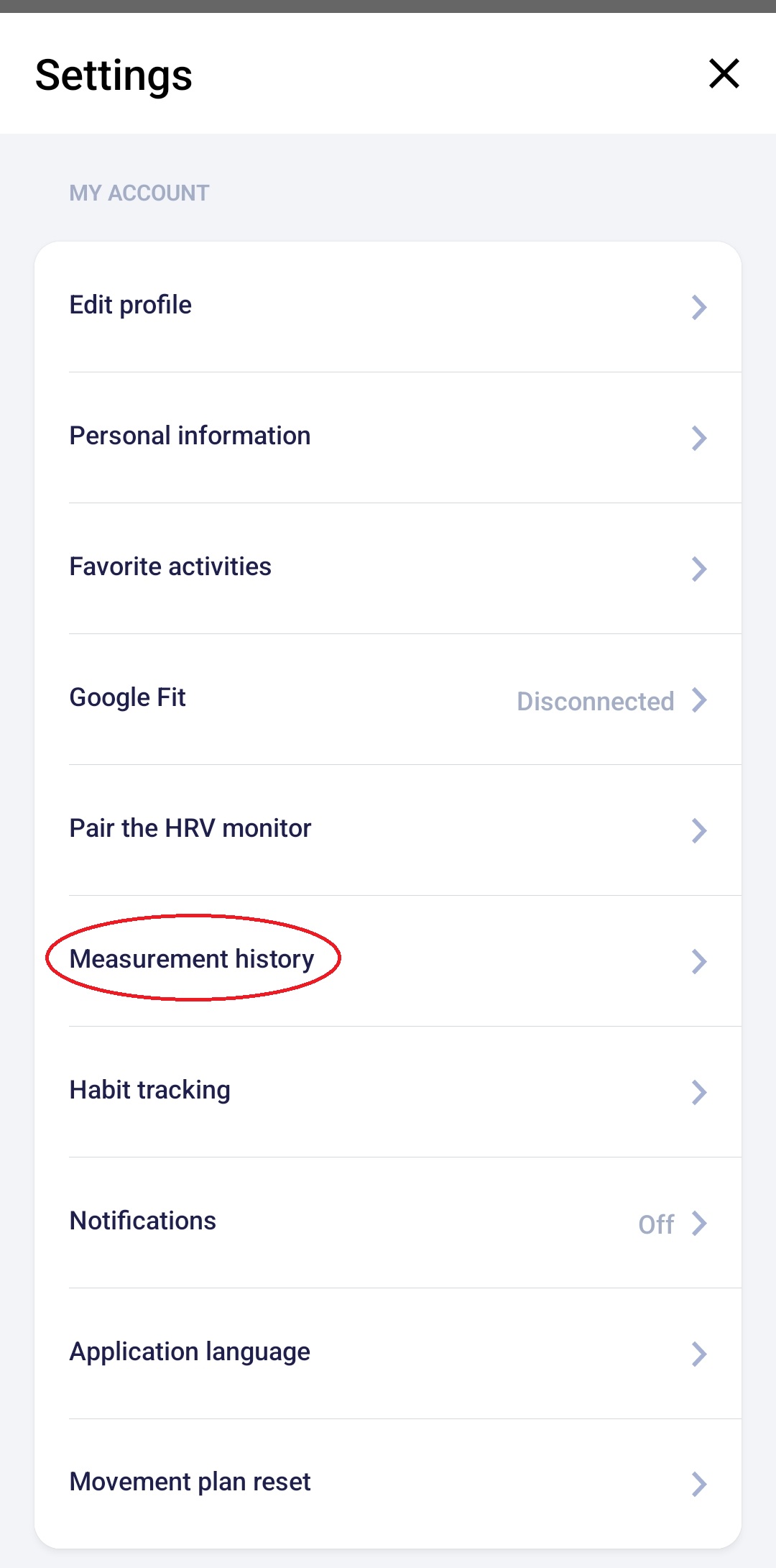
check the Measurement History section to ensure no unsent measurements are blocking the process.
3) Reinstall the app (recommended for persistent issues)
Reset the app – Step by Step
In phone settings → Apps → Elonga tap “Clear data” and “Clear cache”
(you will not lose any measurements saved in your account)Uninstall the app
Restart your phone
Install the app again and log in
Try a new measurement
4) If the issue also relates to sensor disconnections
Check:
stable Bluetooth connection,
that no other Bluetooth devices are active nearby,
correct placement, strap tension, and skin contact,
that the protective film has been removed,
sensor battery level,
minimal movement during measurement.
If the sensor disconnects, turn it off/on and try the measurement again.
5) Test with another device
If possible:
try pairing the sensor with another phone (Android/iOS),
check whether the issue occurs for another user or in another environment.
This helps determine whether the issue is related to the phone or the sensor.
4. When should you contact support?
Please contact us if:
the issue persists after all recommended steps,
measurements repeatedly fail to send or save,
the app displays unexpected or unusual errors,
the sensor regularly disconnects or stops communicating.
We’ll be happy to help troubleshoot the situation and, if needed, perform diagnostics on the sensor or your account.
Was this article helpful?
That’s Great!
Thank you for your feedback
Sorry! We couldn't be helpful
Thank you for your feedback
Feedback sent
We appreciate your effort and will try to fix the article