
Pairing issues can have multiple causes, most often related to phone settings, Bluetooth connectivity, or the app itself. We recommend following the steps below:
1. Check Bluetooth Connection
Make sure Bluetooth is turned on and functioning correctly.
Verify that your phone is not connected to other devices (e.g., headphones or smartwatches) that may block or interfere with the connection.
2. Verify Elonga App Permissions
Important permissions required:
location access
Bluetooth access
Without these permissions, pairing may not be possible.
3. Pair the Sensor Directly in the App
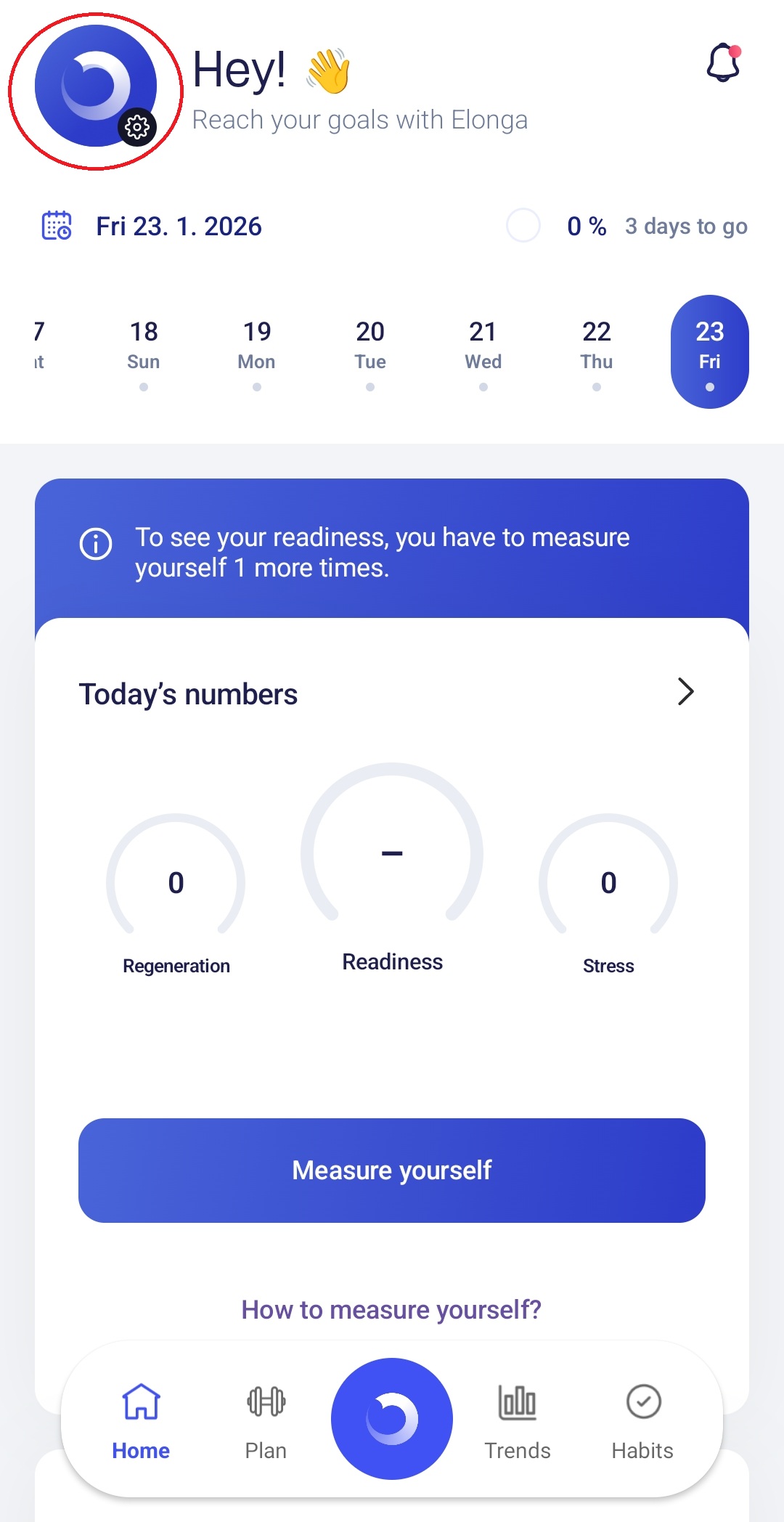
Open the Elonga app.
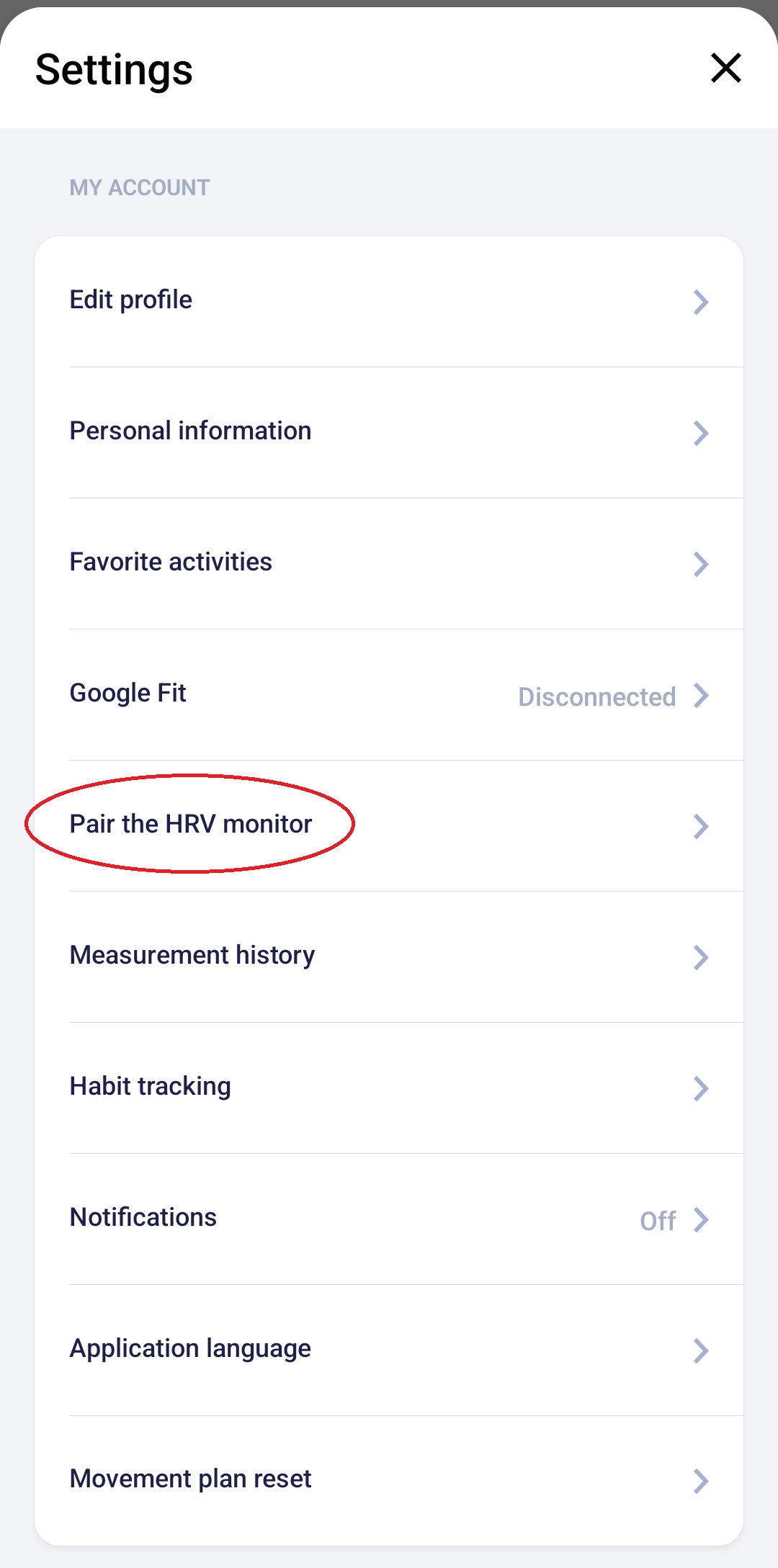
Go to Settings → Pair the HRV monitor.
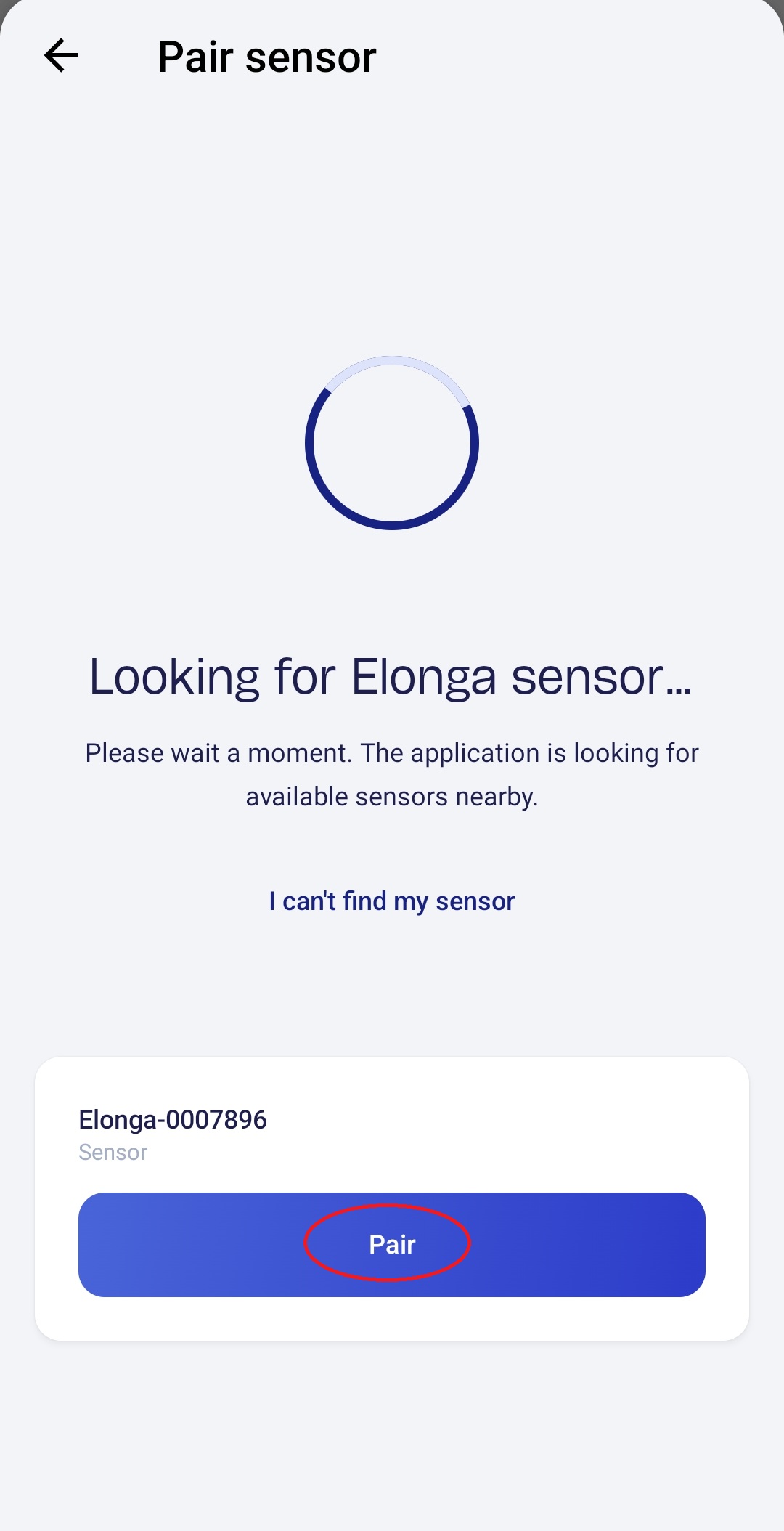
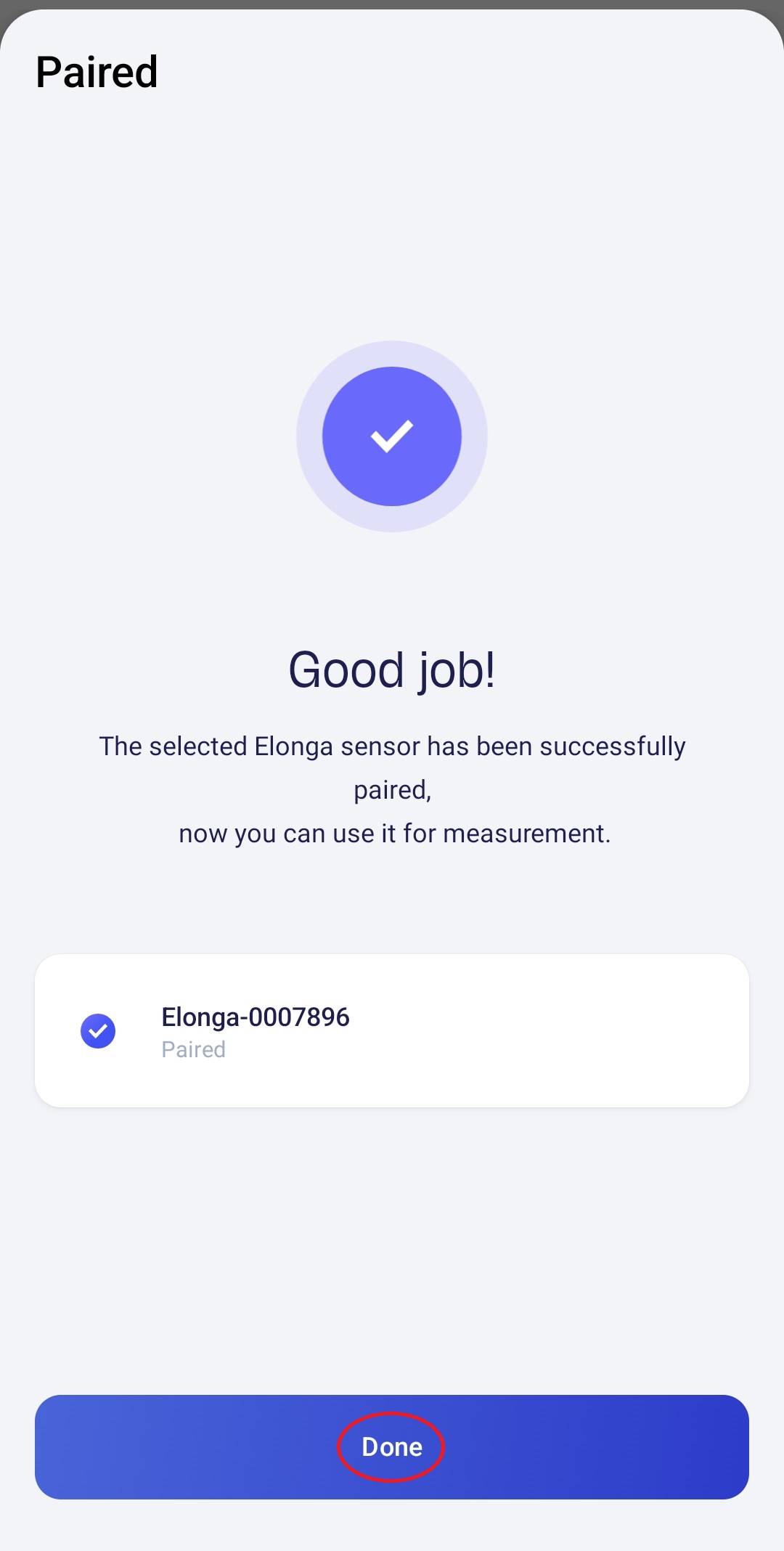
Find the sensor and try pairing it from there.
If the sensor is not found, turn it off and back on, then try scanning again.
4. Reinstall the App (if the issue persists)
Step-by-step reset guide
Remove the sensor pairing in both the app and the phone’s Bluetooth settings.
In your phone settings, open the Elonga app and select:
Clear data
Clear cache (You will not lose any recorded measurements.)
Uninstall the app.
Restart your phone.
Reinstall Elonga and attempt pairing again.
5. Try a Different Phone
If pairing still doesn’t work after the steps above:
try connecting the sensor to a different mobile device.
This helps determine whether the issue is coming from the phone or the sensor itself.
6. If the problem continues
Please contact our support.
To help diagnose the issue, we will need:
your phone model,
operating system version,
app version.
Was this article helpful?
That’s Great!
Thank you for your feedback
Sorry! We couldn't be helpful
Thank you for your feedback
Feedback sent
We appreciate your effort and will try to fix the article