
If your activities have stopped loading automatically into the Plan section, it may be due to a temporary issue with connectivity, permissions, or a third-party app. Below you will find the most common causes and the recommended steps to restore synchronization.
1. Check your internet connection
Synchronization depends on a stable internet connection. If you have:
unstable Wi-Fi,
slow mobile data,
or frequent dropouts,
Google Fit or Apple Health may fail to send data to Elonga. We recommend switching between Wi-Fi and mobile data to see whether the issue persists.
2. Verify synchronization permissions on your phone
Make sure the Elonga app still has permission to access:
Apple Health (iPhone),
Google Fit (Android).
After system or app updates, these permissions may be automatically disabled. Simply re-enable them in your phone’s settings.
3. Check whether the third-party app is recording data
If:
Google Fit stopped recording your steps, workouts, or other activities,
Apple Health did not log a specific activity,
Elonga cannot sync it. First check whether the activity is correctly saved in the original app.
4. Restart the app or your phone
We recommend:
closing the Elonga app and reopening it,
or restarting your phone.
Temporary disruptions or background processes may prevent activity synchronization.
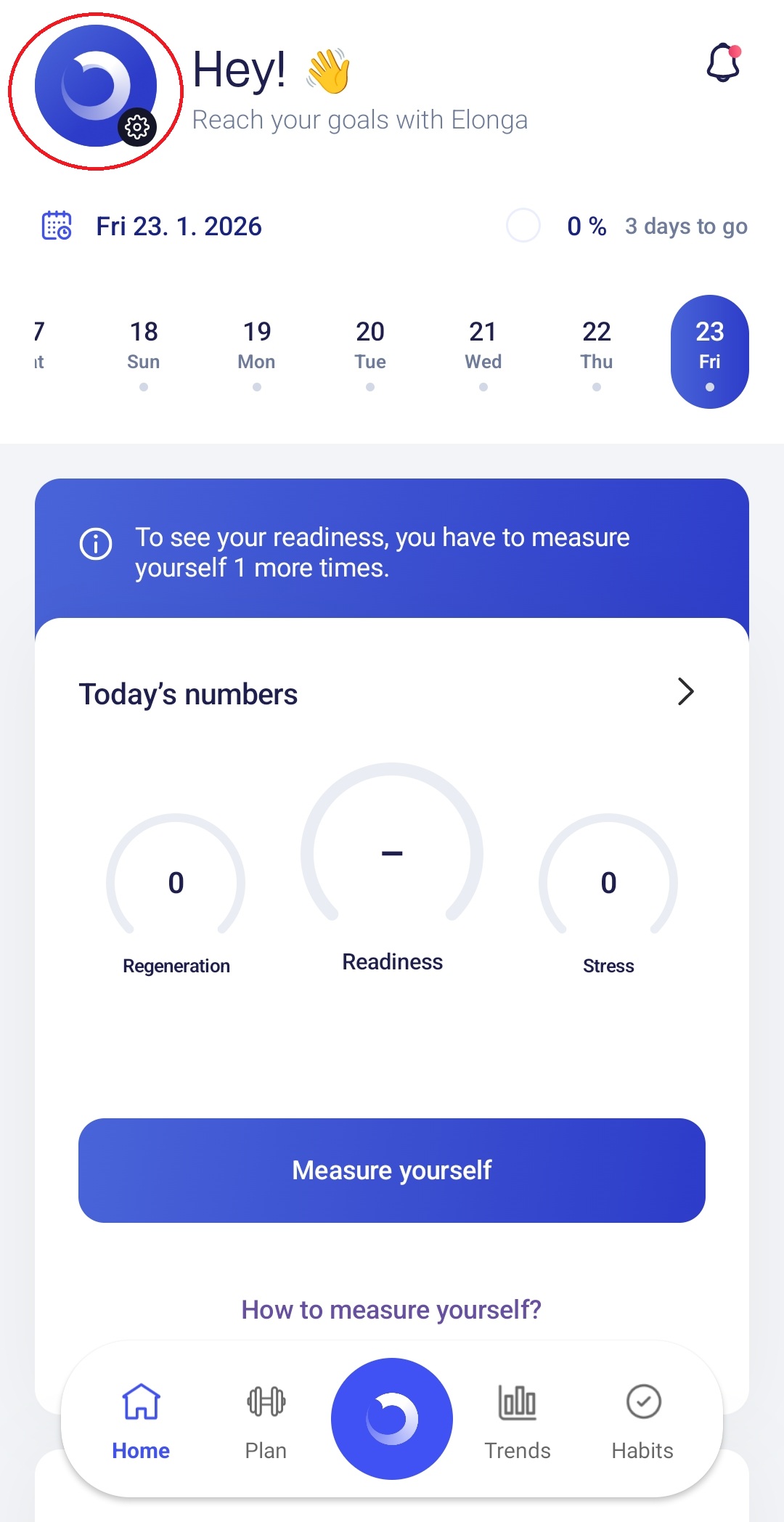
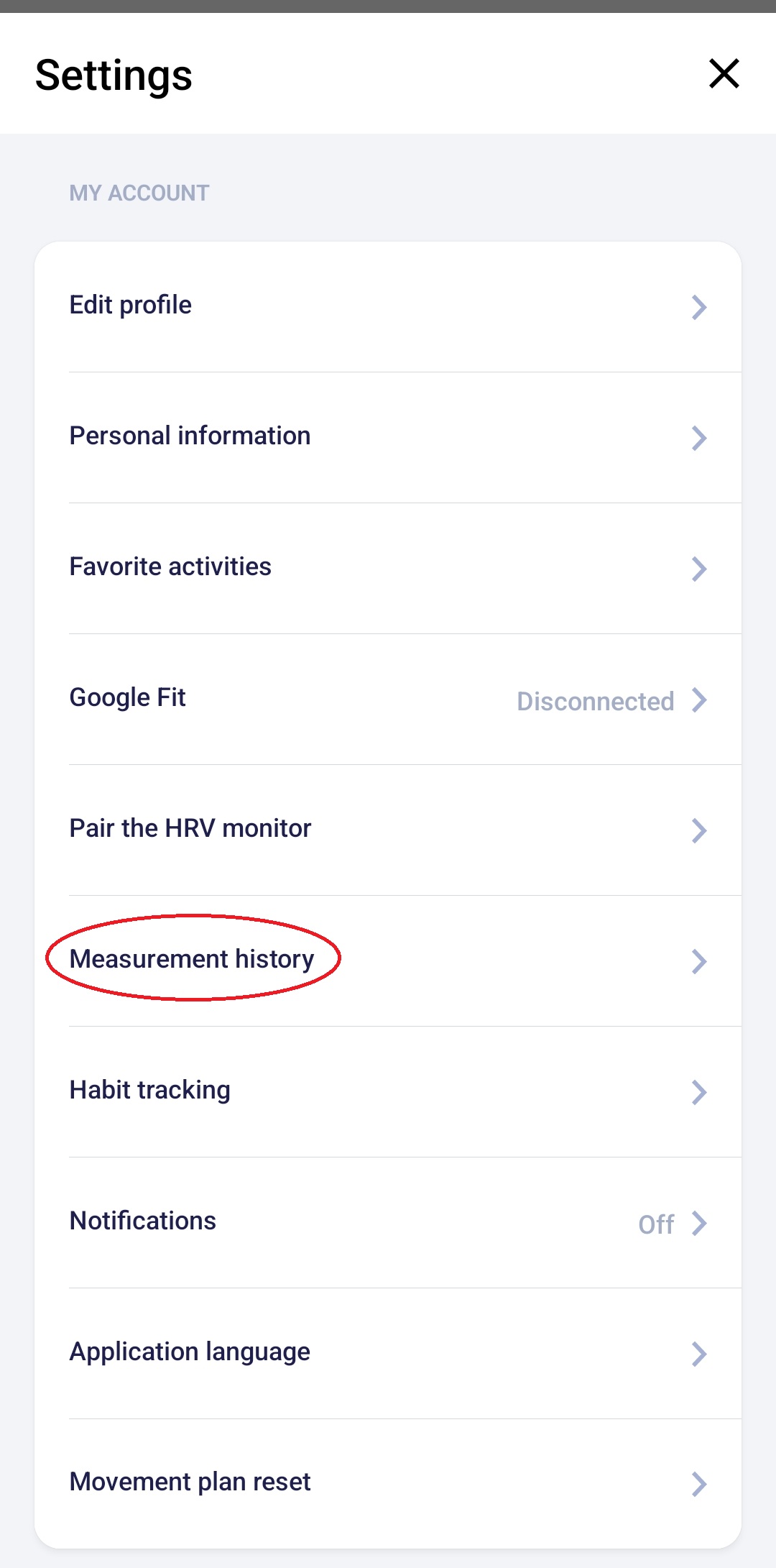
5. Check the Measurement History section in the app
In some cases, unsaved or incomplete entries can interfere with ongoing synchronization.
We recommend:
opening Measurement History,
checking whether there are any unsaved records,
reinstalling the app with cache + data removal if needed.
6. What to do if synchronization still doesn’t work?
Important troubleshooting steps
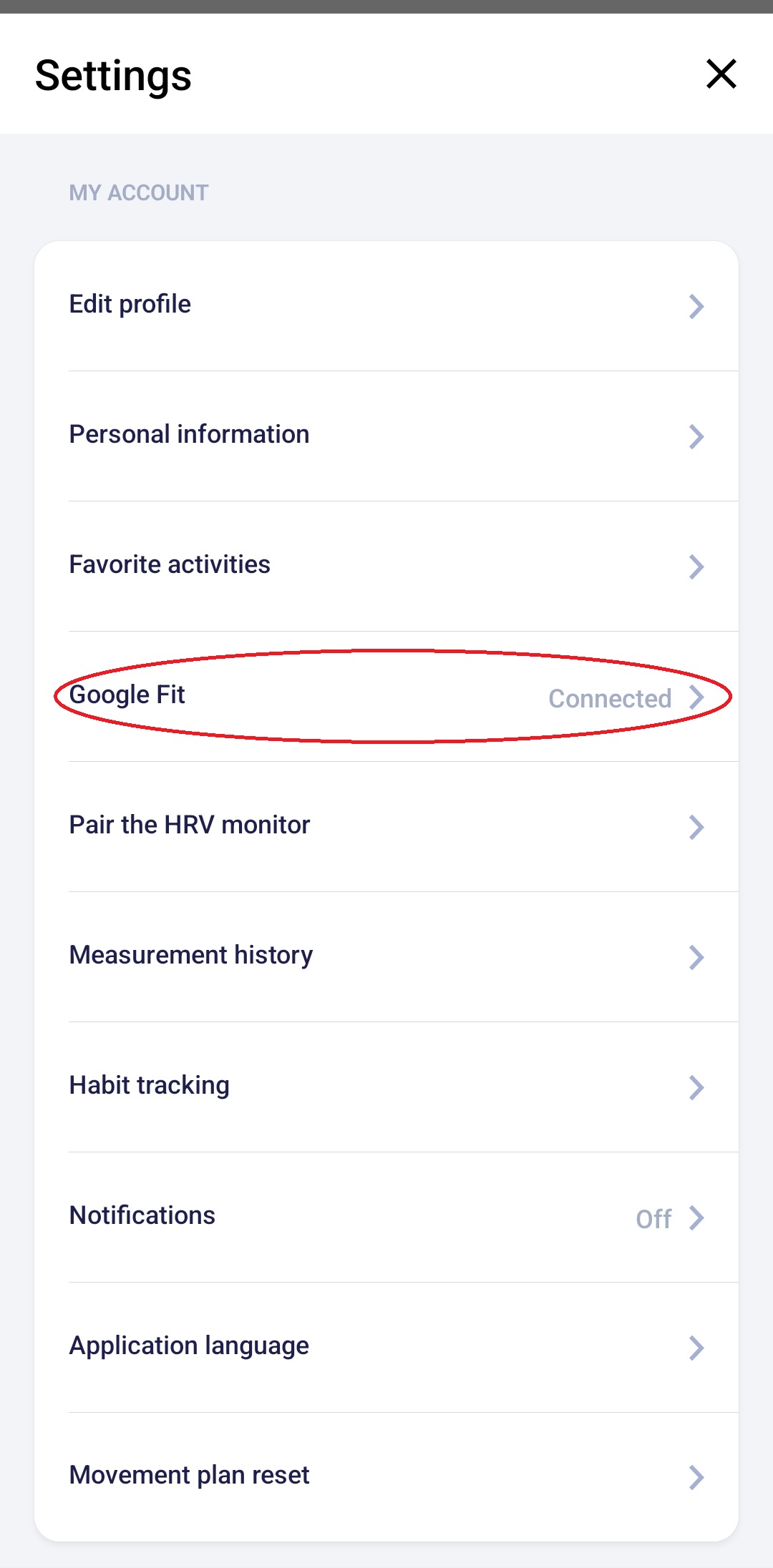
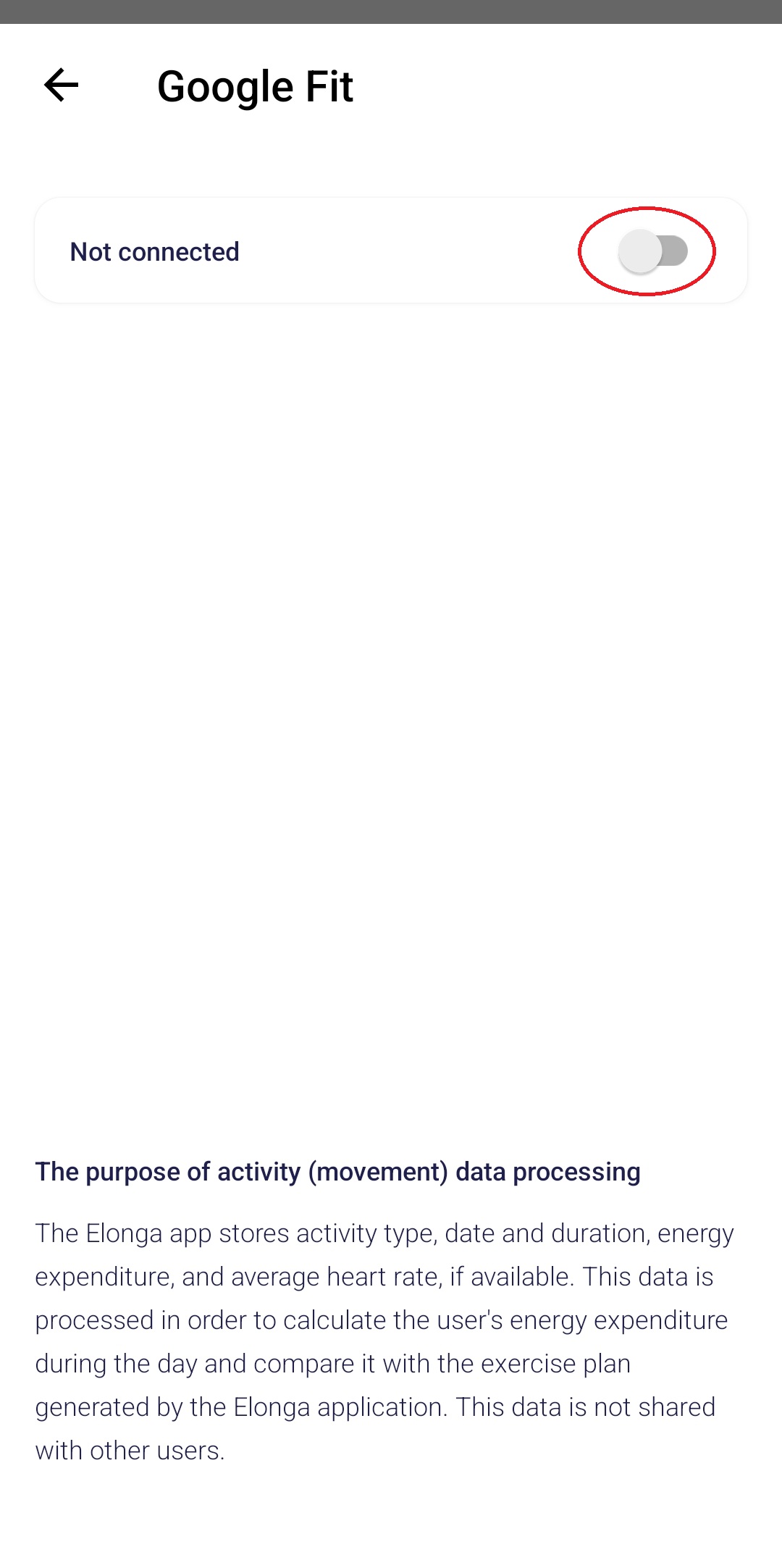
Disconnect the Elonga app from Apple Health / Google Fit.
Reconnect it.
Perform a short test activity (e.g. 1 minute of walking).
Check if the data appears in the Plan section.
If the problem persists, please contact our support team with:
your phone model,
operating system version,
whether the issue occurs on multiple devices.
These information helps us diagnose the issue quickly.
Summary
Synchronization may stop working due to:
internet connectivity issues,
missing permissions on the phone,
problems in Apple Health or Google Fit,
unsaved data in the History section,
device or OS-related errors.
Most issues can be resolved quickly by reconnecting the services, checking permissions, or restarting the device.
Was this article helpful?
That’s Great!
Thank you for your feedback
Sorry! We couldn't be helpful
Thank you for your feedback
Feedback sent
We appreciate your effort and will try to fix the article